
Disclosure: this article contains affiliate links. If you buy through them, we may earn a commission at no extra cost to you. It never decides our picks. Affiliate Disclosure · How we use AI
Moonlight streaming from an RTX 5090 desktop or a Legion Pro 7i laptop? The encoder is the same. What changes is the game headroom, the network and one GPU setting.
What Is Moonlight Streaming?
Moonlight streaming sends a game or desktop from one PC to another screen in real time. The host PC renders the frames. Then its GPU encodes them into video and sends them over your network. The client, such as a laptop, TV, phone or Steam Deck, decodes the video and sends your input back.
Moonlight is the free, open-source client. On the host side, most people now run Sunshine, the open-source host from LizardByte. NVIDIA’s old GameStream host is gone, so Sunshine plus Moonlight is the usual pair.
So when people compare Moonlight streaming performance on an RTX 5090 desktop and a Lenovo Legion Pro 7i, they are really asking two things. First, which machine makes the better host? Second, is the laptop a good client for a desktop in another room? This guide answers both with the official specs.
Moonlight Streaming Performance: What Actually Sets It
Four things decide how Moonlight streaming feels. The host GPU has to render the game at the frame rate you ask for. Then its encoder has to compress each frame fast enough. After that, the network has to carry the bitrate without drops. Finally, the client has to decode and show the frame.
In practice, the weakest link wins in Moonlight streaming. A fast host on 2.4 GHz Wi-Fi still stutters. Likewise, a perfect network cannot fix a game that only renders 45 fps on the host.
That is why Sunshine and Moonlight streaming performance is mostly a setup question, not a raw GPU question. Both machines in this comparison have more than enough encoder for a 4K stream. The real differences show up in rendering headroom, in how the laptop routes its display, and in which network link you use.
RTX 5090 Laptop vs Desktop: The Encoder Is the Same
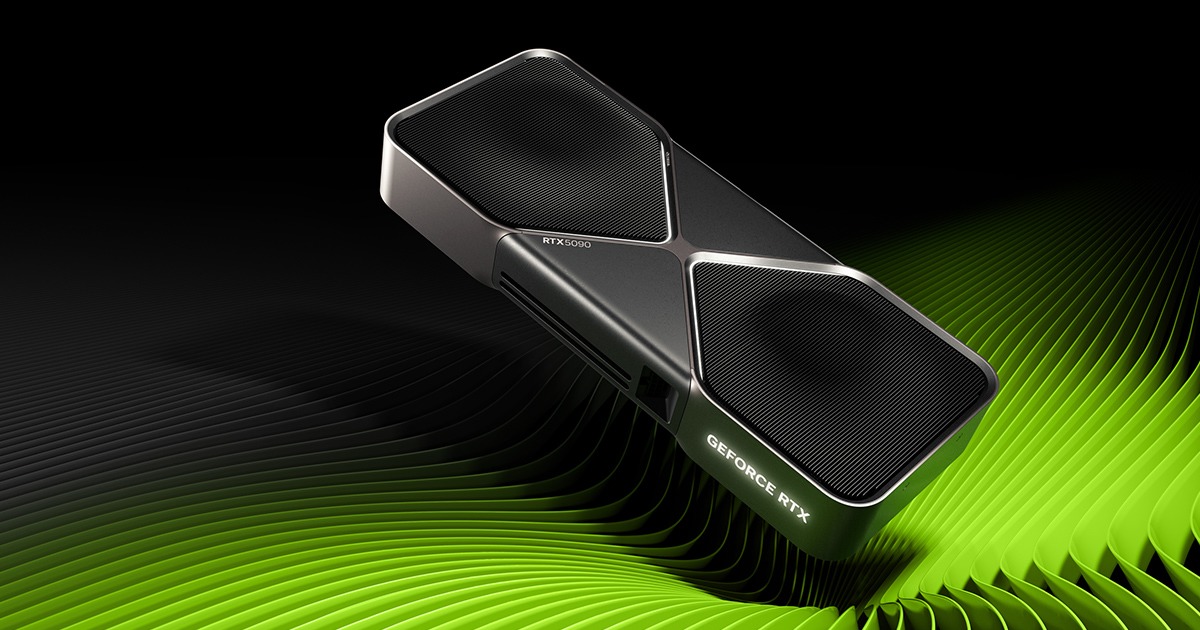
Here is the part most comparisons miss. According to NVIDIA’s spec pages, the desktop GeForce RTX 5090 has three ninth-generation NVENC encoders and two sixth-generation NVDEC decoders. NVIDIA lists the same encoder and decoder layout for the RTX 5090 Laptop GPU. Both support AV1 encode and decode.
So the video engine Sunshine uses is the same generation on both machines. As a result, encode quality and encode speed at a given resolution should be close. Neither one is the bottleneck for a 4K60 or 4K120 stream in a normal home setup.
The difference sits elsewhere. The desktop card has 21,760 CUDA cores, 32GB of GDDR7 on a 512-bit bus and a 575W power rating. By comparison, the laptop chip in the Legion Pro 7i has 24GB of GDDR7 and runs at up to 175W, per Lenovo’s PSREF sheet. That gap matters for the game you are streaming, not for the stream itself.
RTX 5090 Laptop vs Desktop Performance Difference
Rendering is where the desktop pulls away. Notebookcheck found that RTX 5090 laptops land close to a desktop RTX 5070 in its tests, roughly 5 to 10 percent ahead on average in 3DMark. Its coverage also reported the laptop chip running up to about 50 percent slower than the desktop RTX 5090. Those are their benchmarks, and results vary with each laptop’s power limit.
For Moonlight streaming, that turns into a simple rule. If the game hits your target frame rate on the host, the stream will too. If it does not, no bitrate setting will save it.
So for 4K120 in heavy ray-traced games, the desktop is the stronger host by a wide margin. On the other hand, for 1440p or 1600p at high refresh, older titles, emulators and indie games, the Legion Pro 7i has plenty of headroom. Meanwhile, the 24GB of video memory on the laptop chip also helps with high-resolution textures.

The Legion Pro 7i as a Sunshine Host: Set the GPU Mode First
For Moonlight streaming, a laptop host has one quirk a desktop does not. In hybrid mode, the built-in screen is often driven by the Intel graphics, while the game runs on the RTX GPU. Sunshine’s docs note that on Windows it captures through the Desktop Duplication API, which only captures from the GPU used for display.
The Legion Pro 7i makes this easy to fix. Lenovo’s PSREF lists Advanced Optimus support for its OLED panel, so the screen can be switched to the RTX GPU directly. In Lenovo’s software that is the dGPU or discrete mode. With it on, capture, rendering and NVENC all sit on the same GPU.
Two more tips help a laptop host. First, plug in the 400W adapter, because the GPU only reaches its full power on mains. Second, use the 2.5GbE port when you can. The Moonlight setup guide strongly recommends a wired link for the host.
The Legion Pro 7i as a Moonlight Streaming Client for Your Desktop
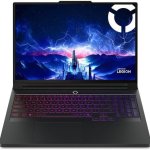
Flip the roles and the Legion Pro 7i becomes one of the best Moonlight streaming clients you can buy. This is the most common reason people pair the two machines. You keep the loud RTX 5090 tower in the office and play on the laptop on the couch or in another room.
Its 16-inch OLED runs 2560×1600 at 240Hz, with 1,100 nits HDR peak and DisplayHDR True Black 1000. Also, the laptop GPU decodes AV1 and HEVC in hardware, so a high-bitrate stream decodes fast. Then there is the network side: Wi-Fi 7 (2×2, 802.11be) and a 2.5GbE port with an Intel I226-V controller.
One point to know: on a laptop client, set Moonlight to 2560×1600 or 1440p rather than 4K. The panel is not 4K, so a 4K stream only costs bandwidth. Moonlight’s own guide says the stream resolution should match the display to avoid scaling artifacts.
Moonlight Streaming in 4K, HDR and AV1
HDR Moonlight streaming works on both machines. Sunshine’s documentation says Windows hosts support HDR streaming on NVIDIA GPUs that can encode HEVC Main 10 or AV1 10-bit. Both RTX 5090 versions qualify. HDR also has to be on in Windows on the host, and you enable the HDR option in the Moonlight client.
For codec choice, AV1 gives the best quality per megabit on these GPUs. However, the client also has to decode AV1 in hardware. The Legion Pro 7i can. Many TVs, older phones and some streaming sticks cannot, so HEVC is the safe fallback there.
For 4K, the host needs a 4K display mode. On the desktop that is usually your monitor. On the laptop, the internal panel tops out at 2560×1600, so a 4K stream needs a 4K external screen or a virtual display. The HDMI 2.1 port handles up to 8K at 60Hz.
Moonlight Streaming Latency: How to Measure It
You do not need to guess. On the PC client, press Ctrl+Alt+Shift+S during a stream to open the statistics overlay, per the Moonlight FAQ. On Android and iOS, you switch it on in settings.
The overlay splits latency into parts. Network latency is the round trip to the host. Then decode latency is how long the client takes to decode a frame. Render latency is the time from decoded frame to screen. If one number is high, you know which part to fix.
For example, high network latency variance points at Wi-Fi. By contrast, high decode time points at a weak client. On a Legion Pro 7i client the decode side is rarely the problem, because its RTX decoder is fast. So most Sunshine Moonlight latency issues on this pair come from the network.
Best Moonlight Streaming Settings for Each Setup
These Moonlight streaming starting points follow the Moonlight and Sunshine docs. Adjust the bitrate up or down while watching the stats overlay.
Moonlight streaming from an RTX 5090 desktop to the Legion Pro 7i
- Resolution 2560×1600 to match the panel, 120 or 240 fps if the game holds it.
- Codec AV1, HDR on for HDR games.
- Host wired to the router. Laptop on Ethernet for the lowest latency, or Wi-Fi 6 or 7 on 5 or 6 GHz.
Legion Pro 7i host to a TV or handheld
- Plug in the adapter and switch the GPU to discrete mode first.
- Use the 2.5GbE port for the host.
- Pick HEVC if the client cannot decode AV1.
For remote play outside the house, Moonlight’s FAQ says to set the bitrate at least 1 Mbps below your upload speed. Also, the host needs at least 5 Mbps of upload.
How the Lenovo Legion Pro 7i Gen 10 Compares to the RTX 5090 Desktop
Pros and Cons
What we liked
- Same NVENC generation and AV1 encode as the desktop RTX 5090
- Excellent Moonlight client: 240Hz OLED with HDR, AV1 decode, Wi-Fi 7
- 2.5GbE port with Wake-on-LAN for a wired host
- Advanced Optimus lets the panel run straight from the RTX GPU
- One machine can host at home and stream away from it
What could be better
- Renders far fewer frames than a desktop RTX 5090 in heavy 4K games
- Needs the 400W adapter and discrete GPU mode for the best host results
- Internal panel is not 4K, so 4K hosting needs an external or virtual display
Which Should You Use for Moonlight Streaming?
Pick the RTX 5090 desktop as your host if you stream demanding games at 4K and high refresh to a TV or a big monitor. It renders far more frames, and frames are what the stream carries. You can build one around the RTX 5090 card or buy a complete tower such as the HP OMEN 45L.
Pick the Legion Pro 7i if you want one Moonlight streaming machine that does both jobs. It hosts well at 1440p and 1600p, and it travels. Then at home it becomes a premium client for a desktop. Its screen, AV1 decode and Wi-Fi 7 make the stream look and feel close to local play.
And if you already own both, the best setup is simple. Make the desktop the host and the laptop the client.
Final Verdict
For pure Moonlight streaming performance as a host, the RTX 5090 desktop wins. Both GPUs share the same encoder generation, so the stream quality is close. However, the desktop renders far more frames in heavy games, and that is what you see on the other end.
Still, the Legion Pro 7i is the more flexible streaming machine. It is a capable host once you set discrete GPU mode, and an outstanding client thanks to its OLED, AV1 decode and Wi-Fi 7. Our full Lenovo Legion Pro 7i review covers the rest of the laptop. We rate the Legion Pro 7i 4.4 out of 5 as a Moonlight streaming machine.
How we compared these machines
We did not stream on these two machines ourselves; this comparison is based on research. We read the official sources on November 13, 2026: NVIDIA’s RTX 5090 spec page, Lenovo’s PSREF sheet for the Legion Pro 7 16IAX10H, the Moonlight setup guide and FAQ, and the Sunshine documentation. Performance figures are Notebookcheck’s, cited as theirs. The draft was written with AI assistance, then checked and edited by Miloš Novaković. How we use AI.
Frequently Asked Questions
Is the RTX 5090 laptop or desktop better for Moonlight streaming?
As a host, the desktop is better because it renders far more frames. Both share the same NVENC generation, so encode quality is close.
Does the RTX 5090 Laptop GPU support AV1 encoding?
Yes. NVIDIA lists AV1 encode and decode for the RTX 5090 Laptop GPU, with the same encoder generation as the desktop card.
Is the Legion Pro 7i good as a Moonlight client?
Yes. Its 240Hz OLED with HDR, AV1 hardware decode, Wi-Fi 7 and 2.5GbE port make it one of the strongest laptop clients.
Why does Sunshine stutter on a gaming laptop?
Often the screen runs on the integrated GPU. Plug in the adapter and switch the Legion Pro 7i to discrete GPU mode so capture and encode share the RTX GPU.
What is the best Moonlight bitrate for 4K?
There is no single number. Start high on a wired network, then lower it if the stats overlay shows dropped frames or high latency variance.
How do I check Moonlight streaming latency?
On a PC client, press Ctrl+Alt+Shift+S during a stream. The overlay shows network, decode and render latency.
Does Moonlight support HDR?
Yes, with Sunshine on Windows. The host GPU must encode HEVC Main 10 or AV1 10-bit, and HDR must be on in Windows and in Moonlight.
Should I stream Moonlight over Wi-Fi or Ethernet?
Wire the host whenever you can. For the client, 5 GHz Wi-Fi 5 or 6 works, while Ethernet gives the lowest and steadiest latency.
Want More?
Choosing the host first? Our best desktop for AI guide covers towers built around the RTX 5090. The RTX 5090 for AI review goes deeper on the card itself. And for laptops, see the best laptop for AI development roundup.