Disclosure: this article contains affiliate links. If you buy through them, we may earn a commission at no extra cost to you. It never decides our picks. Affiliate Disclosure · How we use AI
A video editor that lives next to your spreadsheets sounds boring until it writes the script for you, and that trade between convenience and craft runs through this Google Vids review.
Most people find Google Vids by accident. It sits in the Google apps menu between Slides and Drive, and since 2026 anyone with a Google account can open it at no cost. This Google Vids review checks what the free tier really includes, what the paid plans add and who should skip it.
The short version is clear. Vids is, above all, the easiest way to turn a deck or a screen recording into a decent video. However, the free AI allowance is small, and editors who want control will feel boxed in.
What Is Google Vids?
Google Vids is an AI video creator and editor inside Google Workspace. Google calls it AI video creation for work, and the product page shows exactly that: training clips, pitches, updates and how-to videos.
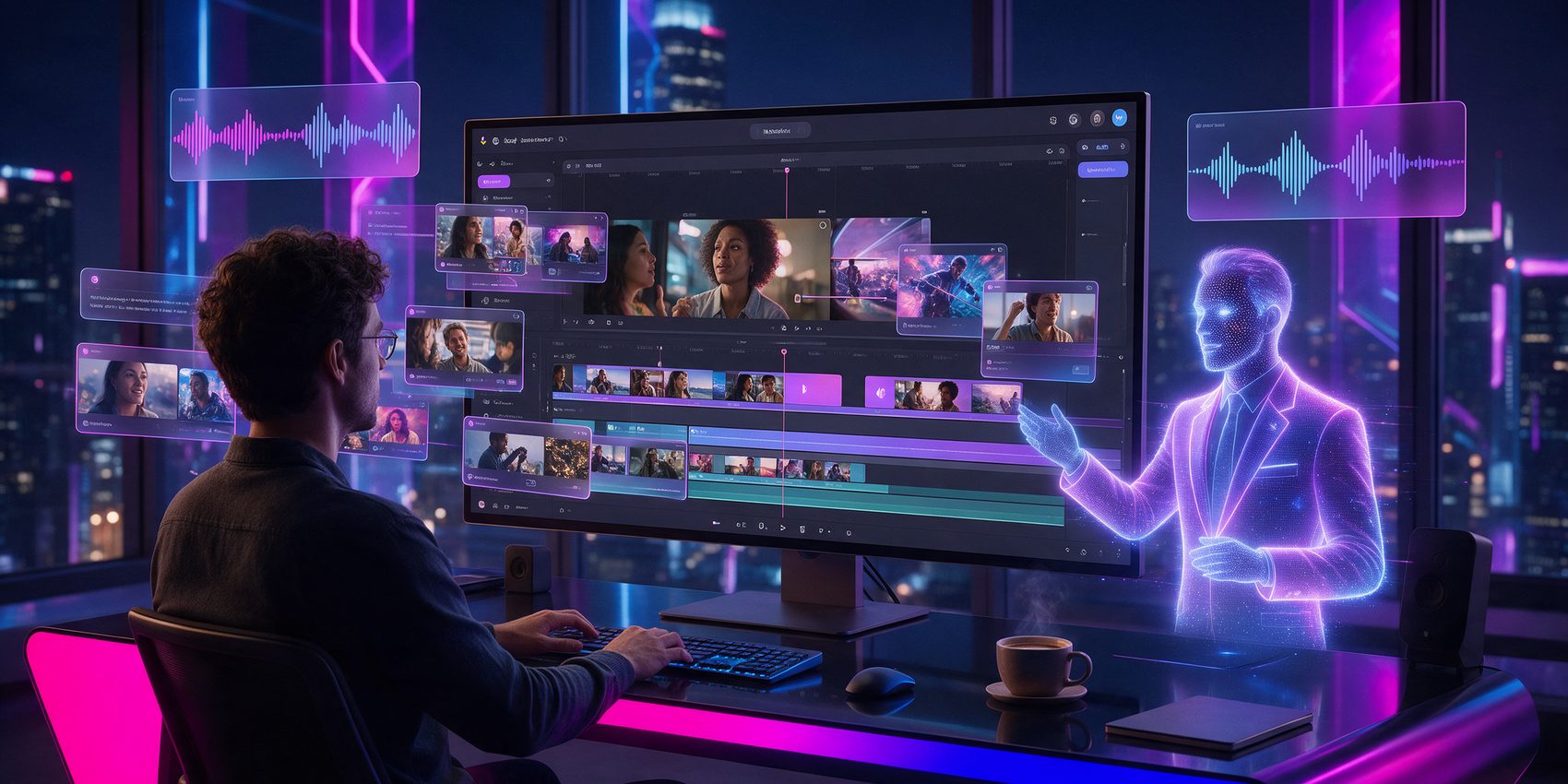
Similarly, you build a video the way you build a Google Doc. Gemini can draft a storyboard from a prompt, you drop in stock media, AI clips or slides, and colleagues edit with you in real time. People also search for it as googlevids or Google Vid, and many look for the full name, Google Vids AI-powered video creator and editor.
Keep in mind that creation runs in a desktop browser only. On a phone you can watch and share, but you cannot edit.
Who Should Use It?
Vids fits teams already living in Google Workspace. Trainers, HR, sales and support staff who need a clear video by Friday get the most out of it.
Teachers, meanwhile, are a second group. Google Classroom users search for it often, and education plans include AI avatars and clips. On the other hand, creators chasing a cinematic look or viral shorts should start elsewhere.
How Does Vids Work?
Vids combines a simple timeline with a set of Gemini tools. Some are free with credits, while others need a paid plan. Below are the parts that shape daily use.
Google Vids AI: Help Me Create and AI Video Clips

Help me create turns a prompt and an optional file into a first storyboard with scenes, script and stock media. It is a fast start. Still, one hands-on test found that AI storyboards need a lot of manual refinement before they look finished.
AI video clips come from Google’s own models. In April 2026 Google named Veo 3.1 for the free clips, while the product page now credits Gemini Omni for text-to-video. In both cases, each clip runs about eight seconds.
Google Vids Review of AI Avatars and Voiceovers in 24 Languages
AI avatars read your script on camera, so nobody has to record. In June 2026 Google raised the preset count from 23 to 53 and added custom avatars built with Nano Banana Pro, as Chrome Unboxed reported.
Avatars now take directed actions, such as walking across the frame or holding an uploaded logo. However, personal accounts only get the preset avatars, and lip sync is decent rather than perfect.
Recording Studio, Transcript Editing and Slides to Vids
The recording studio captures screen, camera and audio in one take. Afterwards, you trim the video by editing its transcript like a document, which also removes filler words and long pauses.
Slides to Vids converts a Google Slides deck into a narrated video. For many teams this is the feature that pays off first, because the deck already exists.
What This Google Vids Review Liked Most: Collaboration
First of all, sharing works exactly like Docs. Comments, version history and live co-editing are built in, so a manager can fix a line of script without exporting anything.
Finished videos go straight to YouTube, where Google sets them to Private by default. In addition, Vids supports widescreen, vertical and square formats, with a 30 minute cap per video.
Google Vids Review in Practice: How Good Is It?

In practice, Vids is quick for simple work. One published hands-on test needed about 15 to 20 minutes for a two to three minute training video. Moreover, templates and stock media cover most office needs.
The limits show up fast, though. The timeline is basic next to Premiere Pro or DaVinci Resolve, template styling is thinner than Canva, and some testers report buffering on slow connections. Because of this, the honest pitch from this Google Vids review is speed and teamwork, not polish.
The free AI budget is the other catch. Personal accounts get 6 AI clips or avatar videos a month combined, plus 50 credits for the smaller tools. A busy week of experiments uses that up quickly.
Google Vids Pricing Review: Is Google Vids Free?
Every price in this Google Vids review comes from Google’s own pricing and help pages as they stood on 18 October 2026. Workspace prices are per user per month on an annual plan.
| Plan | Price |
|---|---|
| Personal Google account | Free: 6 AI clips or avatars a month combined, 50 credits |
| Google AI Pro | $19.99 a month: 25 avatars, 500 seconds of AI clips, music |
| Workspace Business Starter | $7 ($6.30 intro): 10 avatars, 200 seconds of AI clips |
| Workspace Business Standard | $14 ($12.60 intro): 25 avatars, 500 seconds of AI clips |
| Workspace Business Plus | $22: same Vids limits as Standard |
| Google AI Ultra | Up to 500 avatars and 10,000 seconds of AI clips a month |
So is Google Vids free? Yes, to a point. The editor, recording studio, templates and stock media cost nothing with a personal account. The generous AI limits, custom avatars and Lyria music sit behind Google AI Pro, Ultra or a Workspace plan. Note that Google’s April 2026 post promised 10 free generations a month, while the current help page lists 6, so check your own account.
Google Vids vs Clipchamp: Which Free Editor Fits?
Clipchamp is Microsoft’s answer, and it is rising in the same searches. Overall, it is a more traditional editor, with a richer timeline, filters and a big template library, and it ships with Windows.
Google Vids is the better pick for teams that write and review together. Clipchamp is better when one person edits and wants more control. In short, choose the one that matches the office suite you already pay for.
Is Google Vids Legit? What This Review Checked
Google Vids is a real Google product, part of Workspace since its 2024 launch and open to personal accounts in 2026. In addition, your videos live in Google Drive under your account.
The caveats are practical. Google says AI features may be reviewed by people, AI limits change between announcements, and Frontline Workspace plans get no Gemini features in Vids at all.
In short, the tool is safe for everyday work. Still, keep confidential material out of prompts and read the current limits for your plan.
Google Vids Review: Alternatives Worth Comparing
Vids vs Synthesia

Synthesia is the specialist for avatar videos. For example, it offers far more avatars, voices and languages, plus brand kits built for corporate training.
Choose it when the avatar is the whole video. Vids wins when the avatar is one scene in a bigger edit.
Vids vs HeyGen

HeyGen focuses on lifelike avatars, video translation and lip sync across languages. Its results look more natural than the Vids presets.
Therefore it suits marketers and creators who publish talking-head content every week.
Vids vs InVideo

InVideo builds full videos from one prompt, with script, stock footage, voiceover and music in a single pass.
As a result, it is the faster route to social videos and YouTube content. Vids keeps the edge for internal work inside Workspace.
Vids vs Pictory

Pictory turns blog posts, scripts and long recordings into short clips with captions. Above all, it is built for repurposing content you already have.
For instance, a webinar becomes ten social clips in Pictory, while in Vids you would cut them by hand.
Google Vids Review Scorecard: Where It Excels and Where It Falls Short
Pros
- Free to start with any personal Google account
- Slides to Vids turns an existing deck into a narrated video
- Live co-editing, comments and version history like Google Docs
- Transcript editing removes filler words and pauses
- AI avatars in 24 languages, with 53 presets
- Direct publishing to YouTube as a private video
Cons
- Only 6 AI clips or avatars a month on a free account
- Personal accounts get preset avatars only
- Basic timeline next to dedicated video editors
- Desktop browser only, no mobile editing
- AI storyboards still need heavy manual cleanup
- Google’s own free limits changed between announcements
Google Vids Review Verdict: Is It Worth It?
For Workspace teams, Google Vids is close to a no-brainer. After all, it is already in the plan, it turns decks and recordings into clear videos, and it fits the way people already share files.
For solo creators the answer is less simple. The free tier is a fine way to test AI clips and avatars, yet the monthly allowance is small and the editor stays basic.
By the end of this Google Vids review one idea stuck. Vids does not try to make you a filmmaker. It tries to make the video nobody wanted to record take ten minutes instead of a day, and at that job it mostly succeeds.
Want More After This Google Vids Review?
We compared every free option side by side in our guide to the best free AI video generators. If Google’s cinematic tool is what you are after, read our Google Flow AI review.
Meanwhile, teachers can find more classroom picks in the best AI tools for teachers.
Frequently Asked Questions
Is Google Vids free?
Yes. Any personal Google account can use Google Vids at no cost, with 6 AI clips or avatar videos a month combined and 50 credits. Higher limits need Google AI Pro, Ultra or a Workspace plan.
What is Google Vids AI?
Google Vids AI is the set of Gemini tools inside Vids. It drafts storyboards, generates short video clips, adds AI avatars and voiceovers, and on paid plans creates music with Lyria.
How to use Google Vids?
Open vids.google.com on a desktop browser and sign in. Then start from a prompt, a template or a Slides deck, add clips, record your screen, and share or publish the finished video.
Is there a Google Vids app?
No editing app exists. Google Vids runs in a desktop browser, while on mobile you can only view and share videos. In addition, a Chrome extension records your screen and camera.
How much does Google Vids cost?
Vids is free with a personal account. Google AI Pro costs $19.99 a month, and Workspace plans start at $7 per user a month on annual billing, each with larger AI limits.
Can teachers use Google Vids with Google Classroom?
Yes. Education plans include Vids with 10 AI avatars and 200 seconds of AI clips a month. Teachers can share videos through Drive and Google Classroom like any other file.
Google Vids vs Clipchamp: which is better?
Google Vids is better for teams that co-edit inside Workspace. Clipchamp, from Microsoft, offers a richer timeline and more templates for solo editors working on Windows.
How long can a Google Vids video be?
Each Google Vids video can run up to 30 minutes. However, single AI clips last about eight seconds, so longer videos mix AI clips with recordings, slides and stock media.